Quick Answer
Open a DRM-free .epub file in Karuzip to browse its OEBPS/Images (or OPS/images) folder and extract the cover or chapter images selectively. Karuzip does not strip DRM, render e-books for reading, or repair broken EPUB metadata.
Windows 11 / 10 (64-bit) · Free · Zero ads
Choose the right workflow first
Pull cover art or illustrations from a DRM-free EPUB
Open the .epub in Karuzip, navigate to the Images folder, and extract only the files you need.
Read the book normally
Use a dedicated e-book reader app such as Calibre, Thorium Reader, or Apple Books.
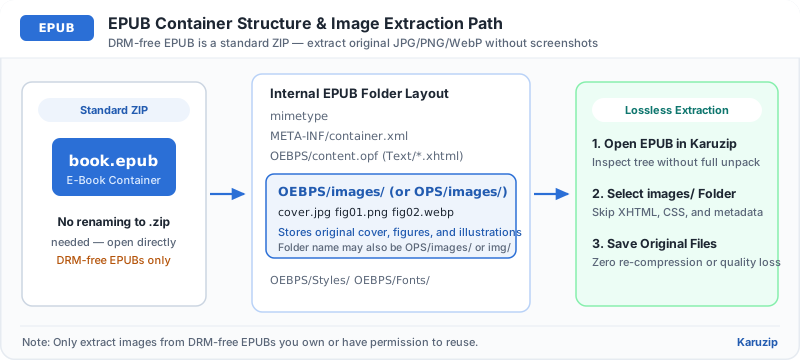
Extract EPUB images in 4 steps
Keep the original .epub file intact and extract only the images you need.
- Confirm the EPUB is DRM-freeOnly DRM-free EPUB files store readable images inside standard ZIP entries.
- Open the EPUB in KaruzipDrag the .epub into Karuzip to view META-INF/, mimetype, and content folders like OEBPS/ or OPS/.
- Locate the Images folderExpand the content folder to find cover images and chapter illustrations (JPG, PNG, or SVG).
- Extract selected images to a clean folderSelect the cover or desired illustrations and extract them into a new folder.
EPUB tasks: Karuzip vs. e-book readers
| Task | Karuzip | E-book reader (e.g. Calibre / Thorium) |
|---|---|---|
| Extract original cover/chapter images | Direct selective extraction | Requires export or edit workflow |
| Read formatted book pages | No | Yes |
| Remove or bypass DRM | No | Not supported by standard readers |
Common EPUB extraction questions
EPUBs follow strict packaging rules, especially if you ever repack one.
- Extracted images will not open (DRM-protected): DRM-encrypted EPUBs encrypt internal XHTML and image streams. Karuzip cannot remove DRM.
- Repacking an EPUB breaks e-readers: The EPUB spec requires the mimetype file to be the very first uncompressed entry. Use an EPUB authoring tool like Sigil or Calibre to rebuild an EPUB.
- Respect copyright: Only extract and reuse images from e-books you own rights to or for permitted personal reference.
EPUB image extraction checklist
Frequently asked questions
Do I need to rename an EPUB file to ZIP to extract its images?
- Answer
No. Karuzip opens .epub files natively so you can browse and extract images directly.
Where are images stored inside an EPUB file?
- Answer
They are usually located inside OEBPS/Images/, OPS/images/, or an images/ subfolder inside the EPUB package.
Can Karuzip remove DRM from an EPUB?
- Answer
No. Karuzip only reads standard DRM-free EPUB ZIP containers and does not bypass or remove DRM.
Can I repack an extracted EPUB using standard ZIP compression?
- Answer
Not reliably. EPUB requires an uncompressed mimetype entry placed first in the archive, so use an EPUB editor like Sigil or Calibre to rebuild EPUBs.
Verification & product scope
- Current release
- Karuzip v3.0.0 (14.71 MB installer, Windows 11 / 10 64-bit)
- Format coverage
- 320 extractable formats · 230 automated-verified · 12 real-machine verified
- RAR & password policy
- RAR is extract-only (no RAR creation). Karuzip never cracks, guesses, or recovers passwords.
- Checked date
- 2026-08-01
Archive integrity tests verify readability only and are not malware scans. Scan extracted executables or scripts with Windows Security before running them.
Official references

Extract EPUB images cleanly with Karuzip
Browse DRM-free EPUB containers and save original-resolution images on Windows 11 and 10.
- v3.0.0 · updated 2026-11-16
- No ads or bundled software
- App sends no usage data
Karuzip runs on Windows 10 / 11. Open this page on a Windows PC to download it.