Fix garbled ZIP filenames on Windows 11
Quick answer: Keep the original ZIP, open it with View contents, then change Filename encoding until the preview becomes readable. Extract only after you have checked the names.
Updated September 12, 2026 (published August 12, 2026) · Written by the Karuzip development team · Test dates and screenshot versions are stated separately.
Unusual symbols in a ZIP file list are often called mojibake. They appear when the tool reading the archive interprets stored filename bytes with a different character set from the one used by the archive creator. A garbled name does not by itself prove that the file contents are damaged.
Fix the filenames step by step
- Work from the original ZIP. Do not rename extracted files one by one. Keep an unchanged copy of the archive so you can safely try another encoding.
- Open Karuzip and choose View contents. Select the ZIP. Karuzip opens a file-list preview without extracting everything first.
- Open Filename encoding. Auto is the default. Select another option to refresh how the names are displayed.
- Try the likely encoding. Use UTF-8, Japanese (CP932), Simplified Chinese (GBK), or Traditional Chinese (Big5). Stop when the full list is readable.
- Extract from the corrected preview. Select the files you need or extract the full archive. The chosen interpretation is used for the extracted filenames.
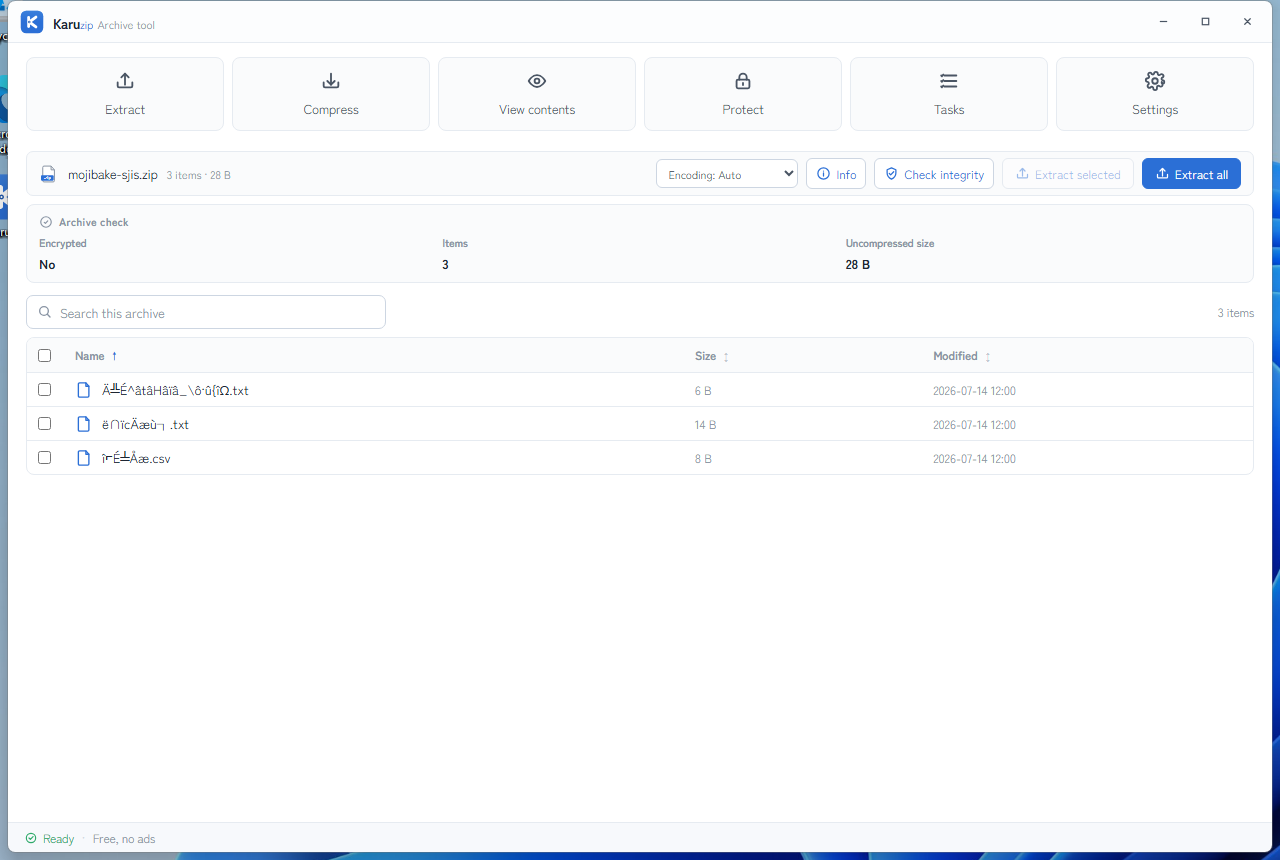
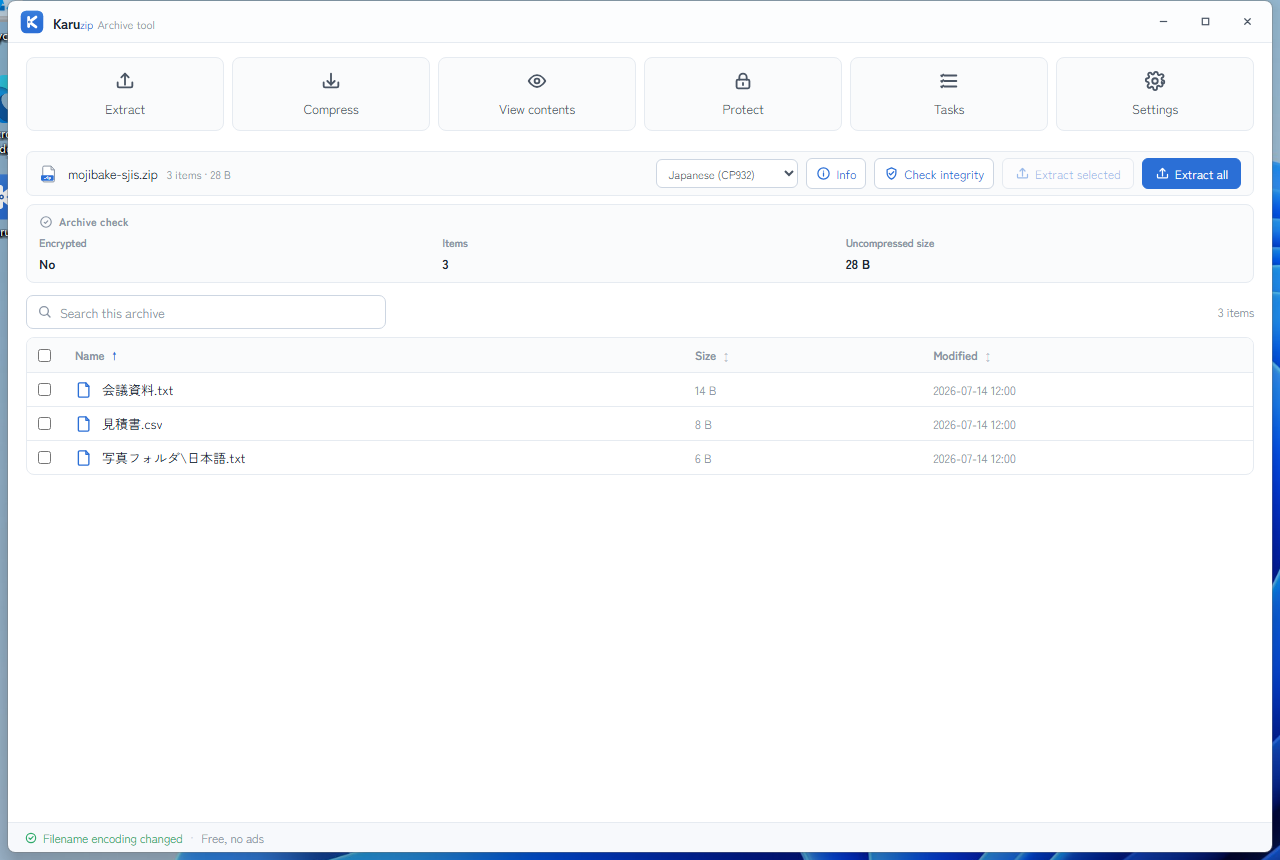
The same ZIP, read with a different filename encoding. The archive itself is never rewritten.
Why ZIP filenames become garbled
Windows file systems store ordinary filenames as Unicode. The ambiguity can begin inside the ZIP: older archives may contain filename bytes without reliable metadata that tells every reader which encoding to use. The ZIP specification supports UTF-8 indicators and Unicode extra fields, but not every archive producer writes the same metadata.
When the expected information is missing or inconsistent, one app may show readable names while another shows symbols. Choosing an encoding in Karuzip changes the decoding step for that archive; it does not change Windows itself.
Which filename encoding should you choose?
| Option | Try it when | What to check |
|---|---|---|
| Auto | The archive is modern or its ZIP metadata is complete. | Leave this selected when every filename is already readable. |
| UTF-8 | The archive came from a current app or a mixed-language workflow. | Check accented letters, Asian scripts, and emoji across several folders. |
| Japanese (CP932) | The ZIP was created on an older Japanese Windows system. | Check kana, kanji, punctuation, and long filenames. |
| Simplified Chinese (GBK) | The sender used a Simplified Chinese Windows environment. | Confirm multiple Chinese filenames, not only one familiar word. |
| Traditional Chinese (Big5) | The sender used a Traditional Chinese environment. | Check characters that differ between Traditional and Simplified Chinese. |
There is no universal best fallback. The sender's operating system, archive app, and ZIP metadata all matter. If you know where the archive was created, start with that environment's likely encoding.
What the setting changes, and what it does not
- It changes how Karuzip interprets entry names while viewing and extracting the selected ZIP.
- It does not automatically identify the correct encoding. You choose from the preview.
- It does not rewrite or repair the original ZIP file.
- It is not available while creating an archive.
- It does not repair damaged file contents or recover a broken archive structure.
If the names are still wrong
- Return to the unchanged original ZIP and try the remaining encoding options.
- Look through several folders. A single readable name is not enough to confirm the choice.
- Use Check integrity in Karuzip. An integrity failure is separate from filename decoding.
- Copy or download the ZIP again if the transfer may have been interrupted.
- Ask the sender which operating system and archive app created it, or ask for a new UTF-8 ZIP.
How to reproduce and cite the filename check
The downloadable encoding samples on this page are generated test files. They are not evidence that each archive was exported by a real Mac or every legacy Windows application. The filenames, encoding flags, hashes, and screenshots describe the specific samples and versions stated above.
- Keep the original ZIP and record the sample name and SHA-256.
- Record Windows version, Karuzip version, and the encoding selected in the list.
- Compare displayed names and names written after extraction. Open the extracted document separately to check its contents.
Changing filename encoding does not translate text inside a document. If no option restores the expected name, ask the sender for a fresh UTF-8 ZIP; do not rename the only copy of the original. To cite the test, link to this page and state the sample, test version, and date rather than describing all Mac-to-Windows ZIP transfers as verified.
Frequently asked questions
Q. Why are ZIP filenames garbled in Windows 11?
A. A ZIP can store filename bytes without enough reliable encoding information. If the extraction tool decodes those bytes with the wrong character set, the names become unreadable even though Windows stores normal filenames as Unicode.
Q. Can Karuzip detect the correct filename encoding automatically?
A. No. Auto is the default, but Karuzip does not guess the correct encoding. Open View contents and manually try UTF-8, Japanese (CP932), Simplified Chinese (GBK), or Traditional Chinese (Big5) until the preview is readable.
Q. Does changing Filename encoding modify the ZIP?
A. No. The setting changes how Karuzip interprets names while viewing and extracting that archive. It does not rewrite the ZIP, and there is no filename-encoding selector when creating an archive.
Q. Which filename encoding should I try?
A. Start with Auto. Try UTF-8 for modern archives, Japanese (CP932) for archives made on older Japanese Windows systems, and GBK or Big5 when the archive came from a Simplified or Traditional Chinese environment.
Q. What if the file contents are damaged?
A. Changing the filename encoding only affects names. Use Check integrity to test the archive itself. If the check fails, copy or download the original archive again, or ask the sender for a new copy.
Official references
- PKWARE ZIP File Format Specification — filename encoding flags and Unicode fields (accessed August 12, 2026).
- Microsoft Learn: Character Sets Used in File Names — Unicode filenames on Windows (accessed August 12, 2026).
- Microsoft Learn: ZipFile.Open — explicit ZIP entry-name encoding behavior (accessed August 12, 2026).
Related help
Start with the product overview, privacy details, or the original Japanese version of this guide.
Preview the names before you extract.
Karuzip is free and processes archive contents locally, with no ads or app telemetry. Choose the Microsoft Store version on Windows 11 or the official 64-bit installer for Windows 10 and 11.

Free · no ads · no app telemetry
Use the same filename encoding for listing and extraction
Put a global option such as --filename-encoding cp932 before the action name. List the ZIP first, confirm the names, then use the same setting for extraction. The accepted choices are auto, utf8, cp932, gbk, and big5—not arbitrary encoding labels.
This controls ZIP filename interpretation. It does not change the app’s interface language or the text encoding inside a document, and it cannot be used to create a CP932 ZIP.
The 2.2.3 development build revises folder navigation and control state after an encoding reload. Recheck names and selections after switching. If a sender already saved damaged names into an archive, selecting an encoding cannot guarantee recovery.
Command example
karuzip-cli --json --filename-encoding cp932 archive.list --archive ".\sample.zip"
karuzip-cli --json --filename-encoding cp932 archive.extract --archive ".\sample.zip" --destination ".\decoded-out" --conflict-policy skip
Replace the sample paths with your own test inputs. Keep global options before the action. Check the exit code and final JSON; these snippets are command examples, not proof that your archive will succeed.
Start with the CLI reference, then follow the actual local-command workflow for Codex, Claude Code, or DeepSeek Harness.
Content checked against the 2.2.3 development source on September 12, 2026. Public download: 2.2.5. Historical screenshots and measurements retain their original version. Editorial and testing policy.