How to open RAR files on Windows 11 and 10
On Windows 11 24H2, right-click an unencrypted RAR and choose Extract All. On Windows 10, or for an encrypted RAR, open it with a trusted RAR-capable tool and extract to a new folder.
Updated September 14, 2026 (published August 12, 2026) · Written by the Karuzip development team · Test dates and screenshot versions are stated separately.
A RAR file is an archive, not a document. Opening it normally means listing its contents or extracting those contents into a regular folder. Keep the original RAR until you have opened the extracted files and confirmed that everything you need is present.
Choose the route for Windows 10 or Windows 11
On Windows 10, use a RAR-capable application such as Karuzip. On Windows 11 24H2, File Explorer supports RAR, but encrypted archives are still outside its documented support. Check your Windows version before following instructions for another release.
Keep every part of a split archive together and start with the first part, such as sample.part1.rar. If a password is required, obtain it from the sender. Extract into an empty folder and check the expected files before deleting the original. Karuzip extracts RAR for free; it does not create RAR or recover an unknown password.
Choose the method that matches your RAR
| Your RAR file | What to do |
|---|---|
| Unencrypted, single RAR on Windows 11 24H2 | Try File Explorer first. Right-click the file and choose Extract All. |
| Any RAR file on Windows 10 | Use Karuzip, 7-Zip, WinRAR, or another trusted RAR-capable tool. |
| Password-protected RAR | Use a compatible archive tool and the correct password. File Explorer 24H2 does not handle encrypted archive operations. |
Multi-part (part01.rar and later volumes) | Put every volume in one folder and start with the first part. Do not concatenate or rename the parts. |
How to extract RAR files on Windows 11 (24H2 and later)
- Confirm your Windows version. Open Settings, choose System, then About. Native RAR support is documented for Windows 11 version 24H2.
- Right-click the RAR file. Choose Extract All. You can also double-click to inspect the archive before extracting.
- Choose a destination. Use a new folder with a short local path, then select Extract.
- Check the output. Open important files and confirm that the expected files and folders are present.
Open a RAR with Karuzip
Karuzip is an option when File Explorer cannot open the archive or when you want to inspect and check it before extraction. RAR support is extract-only.
- Choose View contents. Select the RAR to list files without extracting the entire archive first.
- Use Check integrity when needed. This checks readability; it does not repair a damaged RAR or prove that an unknown file is safe.
- Choose the files to extract. Extract selected items or the whole archive into a new destination folder.
- Verify the result. Open the output and check critical files before deleting or moving the original archive.
Password-protected, RAR5, and split RAR files
Password-protected RAR
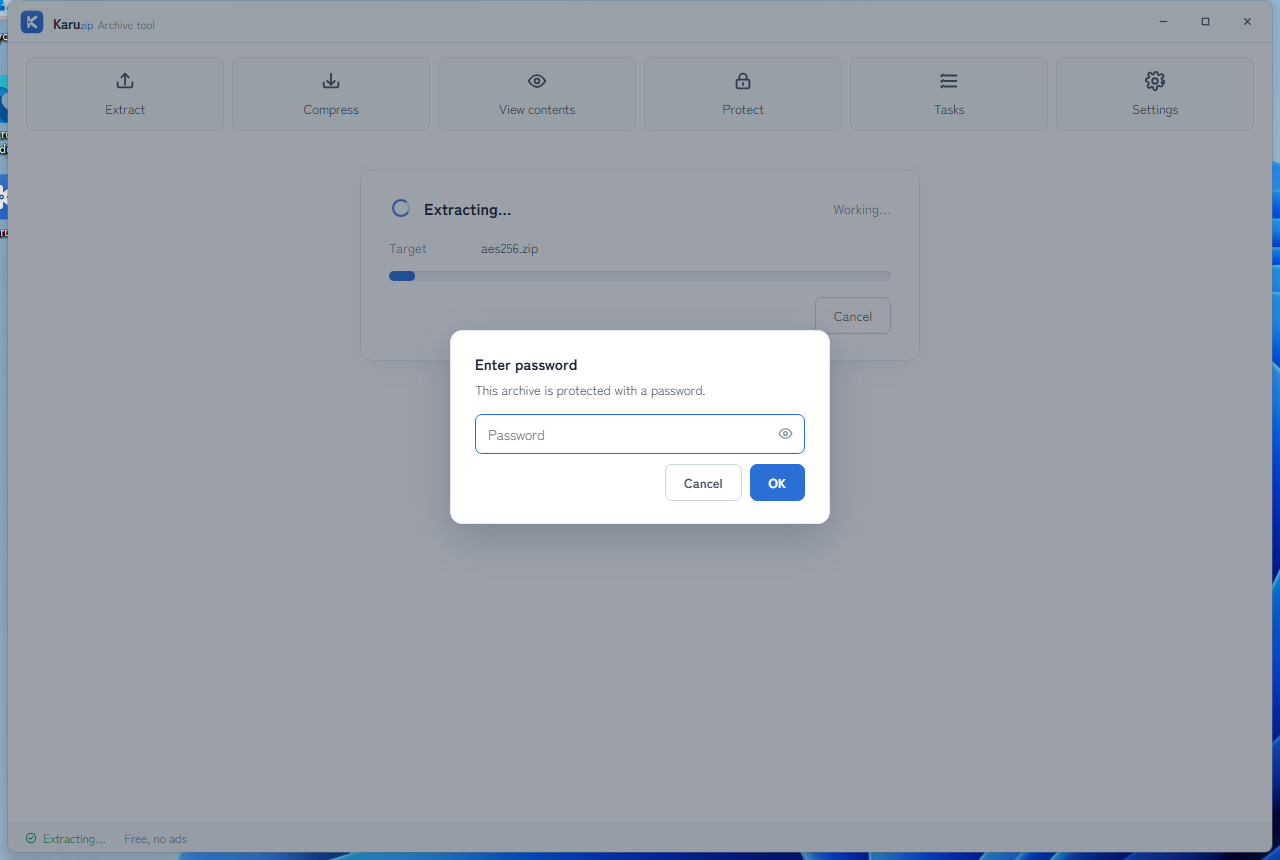
When Karuzip encounters an encrypted RAR, it asks for the password. The password must be correct; an archive app cannot derive it from the RAR. Karuzip does not save archive passwords to settings, history, or logs.
RAR4 and RAR5
RAR4 and RAR5 are generations of the format. Karuzip recognizes both for extraction through its included engine. RAR5 may include newer encryption and split-volume metadata, but the file still requires a complete archive and, when encrypted, the correct password.
Split RAR volumes
Names such as backup.part01.rar, backup.part02.rar, and backup.part03.rar are one archive. Put every part in the same folder and open the first volume. If a middle or final volume is missing, complete extraction is not possible.
.partN.rar names and resolves the operation to the first part, but it cannot recreate a missing volume.RAR extraction and RAR creation are different
| Tool | Extract RAR | Create RAR | Best fit |
|---|---|---|---|
| Windows 11 24H2 File Explorer | Unencrypted RAR | No | Basic extraction without another app |
| Karuzip | Yes, including password prompts | No | Windows 10/11 visual inspection and extraction |
| 7-Zip | Yes | No | Open-source file manager and command-line workflows |
| WinRAR | Yes | Yes | Workflows that specifically require RAR output |
Karuzip deliberately rejects RAR creation. Choose ZIP or 7z when creating an archive in Karuzip. If a recipient explicitly requires a new RAR file, use software licensed to create RAR archives, such as WinRAR.
When a RAR still will not open
- Download or copy it again from the original source.
- Confirm that all split volumes are present and numbered continuously.
- Move the archive and destination to short local paths.
- Run Check integrity, but do not treat it as a repair operation.
- Ask the sender to test the original archive or provide a new copy.
If the same failure occurs with a ZIP rather than a RAR, use the ZIP extraction troubleshooting guide.
Frequently asked questions
Q. Can Windows 11 extract RAR files without extra software?
A. Windows 11 version 24H2 supports opening and extracting unencrypted RAR files in File Explorer. Microsoft states that encrypted archive operations are not supported, so a password-protected RAR still needs a compatible archive tool.
Q. How do I open a RAR file in Windows 10?
A. Windows 10 File Explorer does not include native RAR extraction. Install a trusted RAR-capable tool such as Karuzip, 7-Zip, or WinRAR, then open or extract the archive with that tool.
Q. Can Karuzip extract a password-protected RAR file?
A. Yes. Karuzip prompts for the password when the RAR archive is encrypted. You must provide the correct password; Karuzip does not recover, crack, store, or save archive passwords.
Q. Does Karuzip support RAR5 and split RAR archives?
A. Karuzip recognizes RAR4 and RAR5 for extraction. For a split archive, place every part in the same folder and open the first volume, such as part1.rar or part01.rar. A missing volume prevents complete extraction.
Q. Can Karuzip or 7-Zip create a RAR archive?
A. No. Karuzip and 7-Zip support RAR unpacking, not RAR creation. Use ZIP or 7z when creating an archive with Karuzip, or use WinRAR when the output specifically must be RAR.
Official references
- Microsoft Support: Zip and unzip files — RAR support in Windows 11 24H2 and the encrypted-archive limitation (accessed August 12, 2026).
- 7-Zip official site — RAR listed as unpacking-only (accessed August 12, 2026).
- 7-Zip FAQ — current RAR5 reading support (accessed August 12, 2026).
- RARLAB: WinRAR — RAR and ZIP creation capability (accessed August 12, 2026).
- RARLAB: RAR 5.0 archive format — RAR5 format and encryption details (accessed August 12, 2026).
Related help
- ZIP extraction troubleshooting
- Fix garbled ZIP filenames
- Karuzip extraction features
- 日本語版:RAR ファイルを解凍する方法
Open the RAR without changing the original.
Karuzip extracts RAR files on Windows 10 and 11 with no ads or app telemetry. It does not create RAR archives or recover unknown passwords.

Free · no ads · no app telemetry
Extract RAR files from a terminal or coding agent
The direct installer’s CLI can inspect, list, test, extract, and selectively extract RAR archives. It cannot create RAR or RAR5 files. If you need to repack extracted files, choose a supported creation format such as ZIP or 7z.
Keep every split-RAR volume together. Do not rename a part to pretend it is a complete archive or extract each part independently. For extraction, the 2.2.3 development CLI resolves a selected volume to the first one. Use the first volume for inspection, listing, and integrity checking. It cannot reconstruct a missing volume.
For selected extraction, list the archive first and use the original entry name in --entry. Supply an encrypted archive’s password over stdin, not through a chat prompt.
Command example
karuzip-cli --json archive.list --archive ".\sample.rar" --max-entries 20
karuzip-cli --json archive.extract --archive ".\sample.rar" --destination ".\rar-out" --conflict-policy skip
Replace the sample paths with your own test inputs. Keep global options before the action. Check the exit code and final JSON; these snippets are command examples, not proof that your archive will succeed.
Start with the CLI reference, then follow the actual local-command workflow for Codex, Claude Code, or DeepSeek Harness.
Content checked against the 2.2.3 development source on September 12, 2026. Public download: 2.2.5. Historical screenshots and measurements retain their original version. Editorial and testing policy.