Open the ZIP with Karuzip or another archive tool that supports its encryption method. If the password still fails, verify capitalization, copied spaces, and keyboard layout before assuming the ZIP is damaged.
Password-protected ZIP problems usually fall into one of three buckets: the wrong input, a tool limitation, or actual archive damage. Keep the original ZIP unchanged, use a new destination folder, and record what message appeared before you retry anything.
Match the symptom before retrying
Windows reports an encrypted archive limit
Move to a compatible archive tool. Do not keep retrying in File Explorer 24H2.
Filenames are visible, extraction still asks for a password
That can happen with some encrypted ZIP variants. Listing is not the same as extracting.
Karuzip asks again after you enter it
Check capitalization, full-width characters, copied spaces, and whether the sender replaced the ZIP or password.
The archive fails before a password dialog appears
Compare the ZIP with a fresh copy and run an archive test to separate damage from input mistakes.
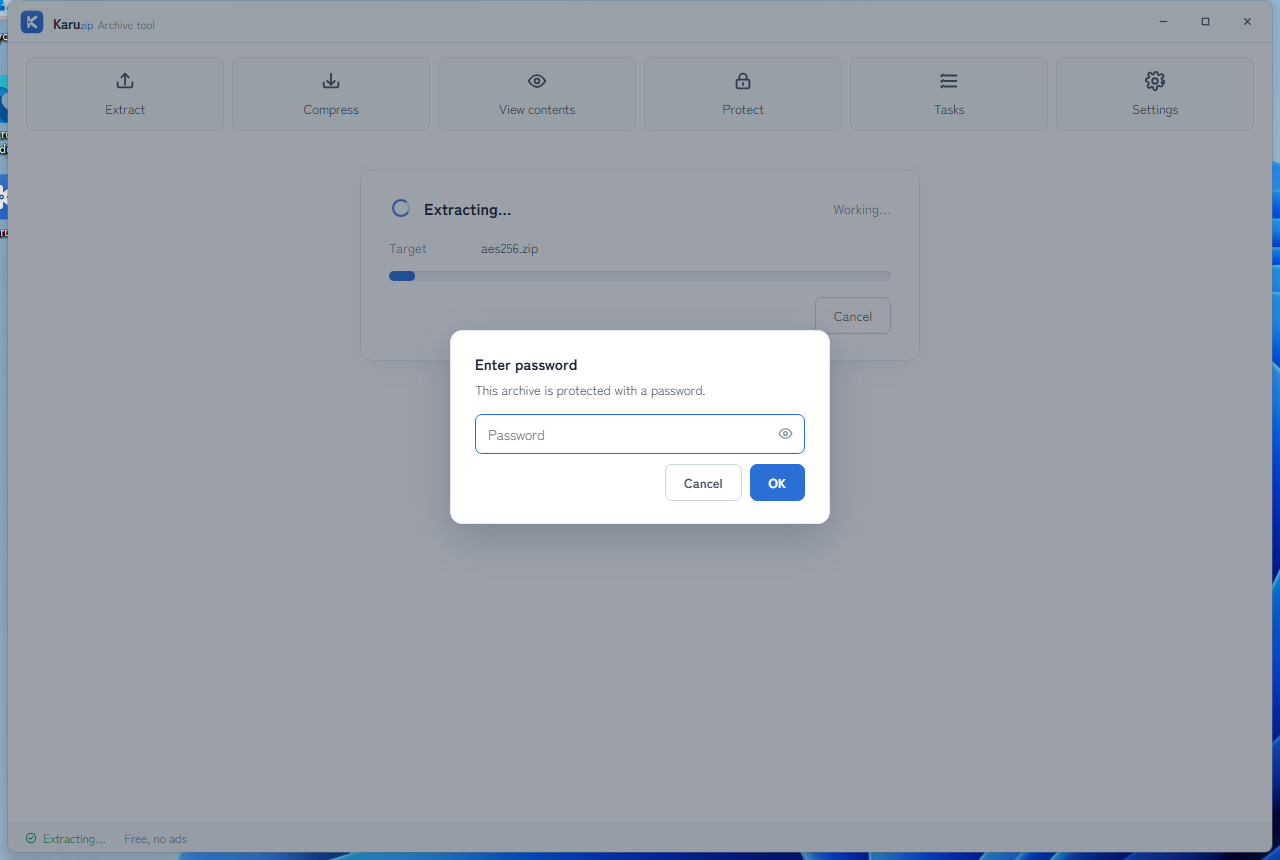
Open the ZIP with Karuzip
Use these steps when you already have the correct password from the sender or creator. Karuzip does not recover unknown passwords, so avoid repeated guessing.
-
1
Keep the original ZIP untouched.
If needed, work on a copy and extract into a new empty folder so you can compare results later.
-
2
Open the ZIP in Karuzip.
Drag the ZIP into the app or choose it from the file picker. A visible file list does not prove the ZIP is unencrypted.
-
3
Start extraction, then enter the password.
Type or paste the password carefully. Use the eye button only long enough to confirm the exact characters.
-
4
Verify the extracted files.
Open the expected output before deleting the original ZIP or the password note from the sender.
Check the password input carefully
- Check uppercase and lowercase letters, plus look-alike characters such as
0andO. - Check full-width characters if the password came from Japanese text, and confirm the current keyboard layout before retyping.
- Check copied leading or trailing spaces and pasted line breaks.
- Check whether the sender issued a newer password for a newer ZIP.
Why File Explorer is not the right fallback here
Microsoft currently states that encrypted archive operations are not supported in Windows 11 version 24H2 File Explorer. Treat a password-protected ZIP as a case for a compatible archive tool, not as a standard Explorer workflow.
| Situation | Windows 11 File Explorer | Karuzip |
|---|---|---|
| Unencrypted ZIP | Normal extraction | List, test, and extract |
| Password-protected ZIP | Do not rely on encrypted operations | Password prompt and extraction with the correct password |
| Unknown password | Cannot extract | Cannot recover or remove the password |
Wrong password or actual archive damage?
Karuzip shows the password prompt again
Karuzip shows the password prompt again after a failed attempt. Re-check the exact characters, copied spaces, and whether the sender replaced the ZIP or password after the first message.
The ZIP fails the same way on a fresh copy
The ZIP fails before or after input in the same way on a fresh copy, or an archive test fails even when you are sure the password is correct. Re-download the ZIP and compare the result instead of overwriting the original copy.
Use archive testing to separate damage from input mistakes. Testing checks whether the archive can be read without writing files into your destination folder. A test result still does not prove the contents are safe.
How Karuzip handles passwords
For manually opened archives, the password handling is temporary. Karuzip does not save archive passwords to settings, recent-file history, logs, or error messages. It can keep the password in memory while the same archive remains open. A password explicitly registered in the watched-folder automation wizard is saved in Windows Credential Manager and can remain available after the app closes. Stopping a rule does not delete that credential.
- Settings and recent files: not saved.
- Task history, logs, and errors: not saved and not displayed.
- While the same archive stays open: temporary in-memory use only.
- After closing the archive or app: not carried forward.
Frequently asked questions
Can Windows 11 open a password-protected ZIP in File Explorer?
Do not rely on File Explorer for encrypted ZIP operations in Windows 11 version 24H2. Microsoft states that encrypted archive operations are not supported, so use a compatible archive tool when the ZIP requires a password.
Why can I see filenames but still need a password when extracting?
Some encrypted ZIP variants can leave filenames visible while still protecting file data. Listing the archive does not prove that extraction will work without the correct password.
Does Karuzip save archive passwords?
For manually opened archives, the password handling is temporary. Karuzip does not save archive passwords to settings, recent-file history, logs, or error messages. It can keep the password in memory while the same archive is open, then discards it when you close the archive or exit. A password explicitly registered in watched-folder automation is instead saved in Windows Credential Manager for later runs.
Can Karuzip recover or remove a forgotten ZIP password?
No. Karuzip does not recover, crack, guess, or remove archive passwords. Ask the sender to confirm the password or create a new archive from the original files.
How do I tell a wrong password from archive damage?
If Karuzip asks for the password again, first check capitalization, full-width characters, copied spaces, and old password mix-ups. If the ZIP fails before or after that with the same result on a fresh copy, compare it with a newly downloaded copy and run an archive test to separate damage from input mistakes.
Official references
- Microsoft Support: Zip and unzip files — current Windows 11 24H2 archive support and encrypted-archive limitation (accessed August 12, 2026).
- PKWARE APPNOTE — ZIP format structure and encryption flags (accessed August 12, 2026).
- 日本語版:パスワード付き書庫を開く手順 — current prompt, retry, and password-handling behavior (accessed August 12, 2026).
Open the ZIP without exposing the password any further
Karuzip can prompt for password-protected ZIP and 7z archives with no ads or app telemetry. The Microsoft Store version is for Windows 11. The 64-bit direct-download installer supports Windows 10 and Windows 11, but it is an unsigned beta.
 Download for Windows 10 / 11
Inspect an encrypted archive without exposing the password
Use the direct installer’s CLI when a repeatable process needs to inspect or extract an encrypted archive. The global --password-stdin option reads one UTF-8 line; keep the secret out of the command arguments, agent prompt, source file, and screenshots.
An incorrect password, an unreadable header, a missing volume, and corrupted data can lead to different failures. Read the final Receipt’s failure.code when present. If the CLI cannot create a Receipt, stdout is empty and a bounded error goes to stderr. Do not keep retrying a password when the evidence points to an incomplete download.
Extract to a new location first. In the GUI, the 2.2.3 development build improves password retry context and keyboard handling. Its behavior does not add password recovery, password removal, or a way around encryption.
Start with the CLI reference, then follow the actual local-command workflow for Codex, Claude Code, or DeepSeek Harness.
Content checked against the 2.2.3 development source on September 12, 2026. Public download: 2.2.5. Historical screenshots and measurements retain their original version. Editorial and testing policy.