On this page (8 sections)
Watch: unzip and create ZIP files
Choose your Windows version to watch how to open, extract, and create ZIP files.

Playing connects to YouTube.Watch on YouTube

Playing connects to YouTube.Watch on YouTube
Install Karuzip
The short version
Install Karuzip, right-click the archive, inspect the file list when needed, then extract or compress with a deliberate destination. The app keeps archive work local and does not collect app telemetry.
Use the Microsoft Store on Windows 11, or run the 64-bit official installer on Windows 10 or 11. Setup keeps the safe defaults selected so you can finish without changing unrelated Windows settings.
- Two setup choices, both pre-answered safely
- No bundled software and no optional offers
- File associations stay off unless you turn them on
- Uninstalling removes the context-menu entries with it
The direct-download installer may trigger Microsoft Defender SmartScreen because it is an unsigned beta with lower reputation, not because the site claims it is malicious. If you prefer a Microsoft-signed route, use the Store version on Windows 11.
Read the progress window literally
A right-click operation opens a small progress window. Extraction can show a percentage, an item count, and an estimated time remaining when those values are available. If Close when finished is enabled, a successful operation closes its window automatically.
reports_2026.zip
Processed items / total items · estimated time remaining
You can cancel an operation while it runs. Karuzip cleans up unfinished output and protects existing destination files. When extracting into an existing folder, allow temporary space for the working copy as well as the final output.
The Tasks list handles a batch in order. Since 2.2, you can view or test a different archive in the main window while a right-click extraction runs. Separate extract or compress operations may run together when their destinations do not overlap; simultaneous writes to the same destination are blocked.
Open password-protected archives safely
When you manually open an encrypted archive, Karuzip asks for its password and can keep it in memory while that archive remains open. It does not write that password into app settings, archive history, or the task log. The optional password registered in the watched-folder automation wizard has a different lifetime: it is saved in Windows Credential Manager for later automation runs.
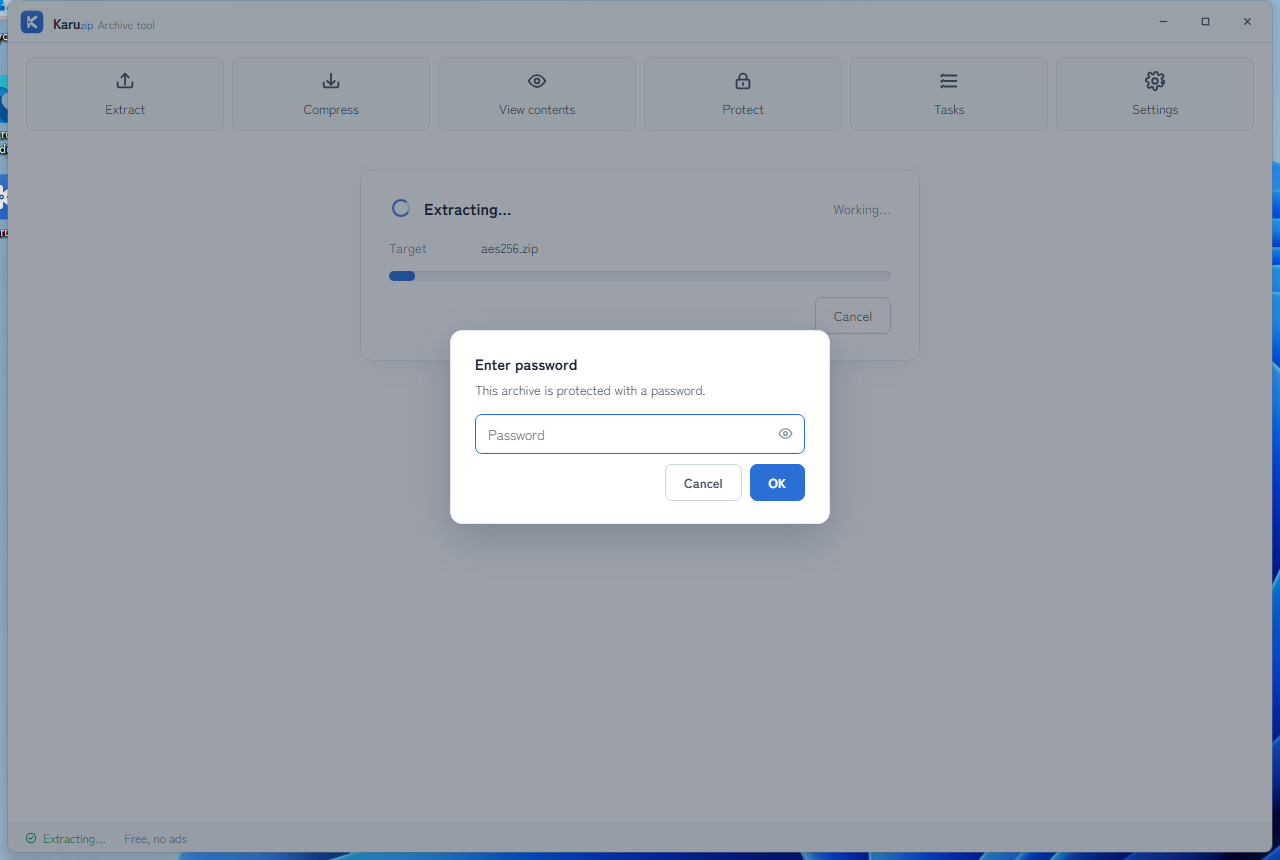
Some encrypted archives hide filenames until the password is entered. That is an archive-format behavior, not a read failure. A wrong password stops the current task cleanly.
Create a new archive
Select files or folders and use Compress with Karuzip in the official installer's classic menu, or Compress… in the Store edition's Karuzip menu. You can also use Compress in the app. Choose your format and settings, then select where to save the archive. Password protection is available for ZIP and 7z.
| Format | Best for |
|---|---|
| ZIP | Broad compatibility for sharing files. Password protection is available. The filename-encoding selector is for reading existing ZIP files, not choosing an encoding during creation. |
| 7z | Stronger compression or password-protected handoff to recipients who have a 7z-capable tool. |
| TAR / GZIP / BZIP2 / XZ / WIM | A specific workflow that already expects that format family, rather than ordinary Windows sharing. |
Karuzip can open RAR archives, but it does not create them. If the task requires a new encrypted archive from Karuzip, choose ZIP or 7z instead.
Set up automated processing
Scroll down on the home screen to Automation and click Open automated folder watching. There are three workflows: one watches for new archives while the app is open, and the other two run once when you start them.
| Workflow | What it does |
|---|---|
| Inspect and extract incoming archives | Create a rule with New automation, then click Start. New archives are checked, extracted if healthy, or quarantined if damaged or in need of a password. |
| Batch health check | Checks archives in a folder once and counts healthy, damaged, and password-required results. Nothing is extracted or moved. |
| Verified delivery archive | Creates an archive and re-checks it immediately. Review the result before sending the file yourself. |
Watch for incoming archives
- Click New automation. Use Choose… for Watched folder, Output folder, and Quarantine folder. For example, watch
C:\Karuzip-Demo\Inbox, put output in itsExtractedsubfolder, and useC:\Karuzip-Demo\Quarantinefor quarantine. - Fill in Password (optional) if incoming archives share a password. Choose whether to Resume automatically when Karuzip starts.
- Click Create. The new rule is Stopped: creation alone does not start watching. Click Start in the list and check that its status becomes Running.
- Place a new archive in the watched folder. Check the output or quarantine folder and Recent runs for the result. Click Stop when you want to stop watching.
The output folder must be inside the watched folder. The quarantine folder must be on the same drive or volume as the watched folder. For password-protected incoming archives, Karuzip registers the password you enter with Windows Credential Manager; you do not need to add it there manually. Use the same Windows account, signed in to an interactive desktop session.
Closing the app also stops watching. Automation is not a Windows service. Adding a new archive is how you start a run. While Karuzip is processing it, do not let another extraction tool or automation modify the same archive, destination, or watched-folder contents. Karuzip cannot block another tool from writing there.
Check a folder of archives once
Click Batch health check, choose Folder to check, and click Start check. The results show Healthy, Damaged, and Needs password counts. View in history opens recent integrity-check history; find the matching record there to read its details. Cancelling stops the batch and leaves the results collected so far visible.
Create an archive and verify it
Click Verified delivery archive → Choose files to start…, select your inputs, choose compression settings, and pick an output file. This workflow combines the inputs into one archive; it does not support making a separate archive for each item. Read the re-check result before sending the file. Karuzip does not deliver or upload it for you.
First check that the rule is Running. Version 2.2.1 fixes watched-path matching for ordinary Windows folders and NAS shares, plus recognition of the allowed quarantine destination. Update from 2.2.0 if affected. As of September 5, the official installer is 2.2.1 and Store package 2.2.1.0 is in certification. Check the download page for the current distribution status.
Review completed operations
On the home screen, scroll to History and click View extraction and compression history. Filter with All, Done, Failed, or Cancelled, then expand a row to see its verification and application results. Tasks shows queued work; History shows past results.
Save diagnostic info for support
Open Settings → General → Export diagnostic info. Read Diagnostic Export Preview, click Export, and choose where to save the JSON file. It contains counts and error types, with no file or folder names. Nothing is sent automatically: attach the saved file to a support request yourself if needed.
Troubleshoot the common failure points
| Symptom | What to try |
|---|---|
| The context-menu entries do not appear | Reinstall or reopen the app so Explorer integration is registered again, then restart File Explorer if Windows keeps showing an old menu cache. |
| The archive opens, but the filenames are unreadable | Open the file with View contents and switch ZIP filename encoding before extraction. This is the correct fix when the archive came from an older Windows locale or another regional tool. |
| The job stops partway through | Use Check integrity first to separate a damaged archive from a destination problem, then retry into a fresh folder if you need to compare the new output. |
Use one archive workflow you can inspect end to end
Karuzip keeps archive processing local, with no ads or app telemetry. Download on a Windows PC only: the Microsoft Store route is for Windows 11, and the 64-bit direct-download installer supports Windows 10 and Windows 11.

2.2.3 development guide: choose the right entry point
Use the main window when you want to inspect one archive, the context menu for a direct extraction, and the CLI for repeatable tasks. The GUI launch option Karuzip.exe --extract-to chooses a destination layout; it is different from the CLI’s explicit --destination.
Inside an archive, navigate into folders and use Up, Back, or Forward. Check the current location and search scope before selecting entries. After changing ZIP filename encoding, confirm the displayed names again. Listing archive contents is not an embedded viewer for the contents of pictures, PDFs, or text files.
An engine reaching 100% can be followed by commit and verification work. Wait for the final result before treating the output as delivered. Extraction into an existing folder needs working space. After a cancellation, read the outcome and any residue warning before repeating the job.
Automation, local history, and diagnostics
| Task | What it does | Boundary |
|---|---|---|
| Incoming-archive inspection and extraction | Watch a chosen folder, check arrivals, and extract or quarantine according to the rule | Runs only while Karuzip is open |
| Batch archive health check | Check archives one by one and summarize results | One-time operation; cancellable |
| Verified compression | Create an archive and verify the result | Creates local output; does not send files |
| Processing history / diagnostic export | Review local results; preview and save a diagnostic report | Does not automatically upload the report |
Creation formats and settings
ZIP and 7z accept multiple files, passwords, and split output; only 7z supports solid mode. GZIP, BZIP2, and XZ accept one file. TAR and WIM accept multiple files but have no password or split-output setting. ZIP creation uses ZipCrypto; 7z uses AES-256 with encrypted filenames. RAR is extraction-only.
Command example
karuzip-cli --json archive.list --archive ".\sample.zip" --max-entries 20
karuzip-cli --json archive.test --archive ".\sample.zip"
karuzip-cli --json archive.extract --archive ".\sample.zip" --destination ".\sample-out" --conflict-policy skip
Replace the sample paths with your own test inputs. Keep global options before the action. Check the exit code and final JSON; these snippets are command examples, not proof that your archive will succeed.
Start with the CLI reference, then follow the actual local-command workflow for Codex, Claude Code, or DeepSeek Harness.
Content checked against the 2.2.3 development source on September 12, 2026. Public download: 2.2.5. Historical screenshots and measurements retain their original version. Editorial and testing policy.