How to Open 7z Files on Windows 11 and 10
On Windows 11 24H2, right-click an unencrypted 7z file and choose Extract All. On Windows 10, or for a password-protected or split 7z, use a compatible app such as Karuzip or 7-Zip. Keep every split part together and start with .7z.001.
Published and updated October 28, 2026 · Written by the Karuzip development team.
A .7z file is an archive containing files and folders. Listing its contents and extracting them are separate actions. Keep the original until you have checked the extracted files. Changing the extension to .zip does not convert it.
Choose the method for your 7z file
| Your situation | First step |
|---|---|
| Windows 11 24H2, ordinary 7z | Try File Explorer → right-click → Extract All → choose a new folder. |
| Windows 10 | Use a 7z-capable app. File Explorer does not provide native 7z extraction. |
| Password-protected 7z | Use a compatible app and the correct password. File Explorer does not support encrypted archive operations. |
| Split .7z.001 / .002 / .003 | Download all parts, keep them in one folder, and open .7z.001 in a compatible app. |
Microsoft documents 7z support for Windows 11 24H2 and the encrypted-archive limitation. If your Windows release or compression method is not supported, try a compatible app. 7-Zip is also a free, open-source option for 7z files.
Open and extract a 7z file with Karuzip
The following steps were checked in the English interface of Karuzip 2.2.10 on Windows 11 on October 28, 2026. The screenshots show the actual application; the Windows system dialog uses the PC’s Chinese display language.
- Choose View contents, then Choose files. Select your
.7z. On the home screen, Choose files also opens the archive list. - Inspect the list and Info. Check that the expected files and folders are present. Info identifies the archive format, size, compression method and other available properties.
- Choose Check integrity. A successful test means the stored contents could be read. It does not repair damage, recover a password or scan for malware.
- Choose Extract all. Check the extraction destination in Settings. This test used a new archive-named folder beside the input. Select a separate empty folder when checking unfamiliar archives.
- Check the actual output. Confirm the names and count, then open important documents or images. Keep the archive until that check is complete.
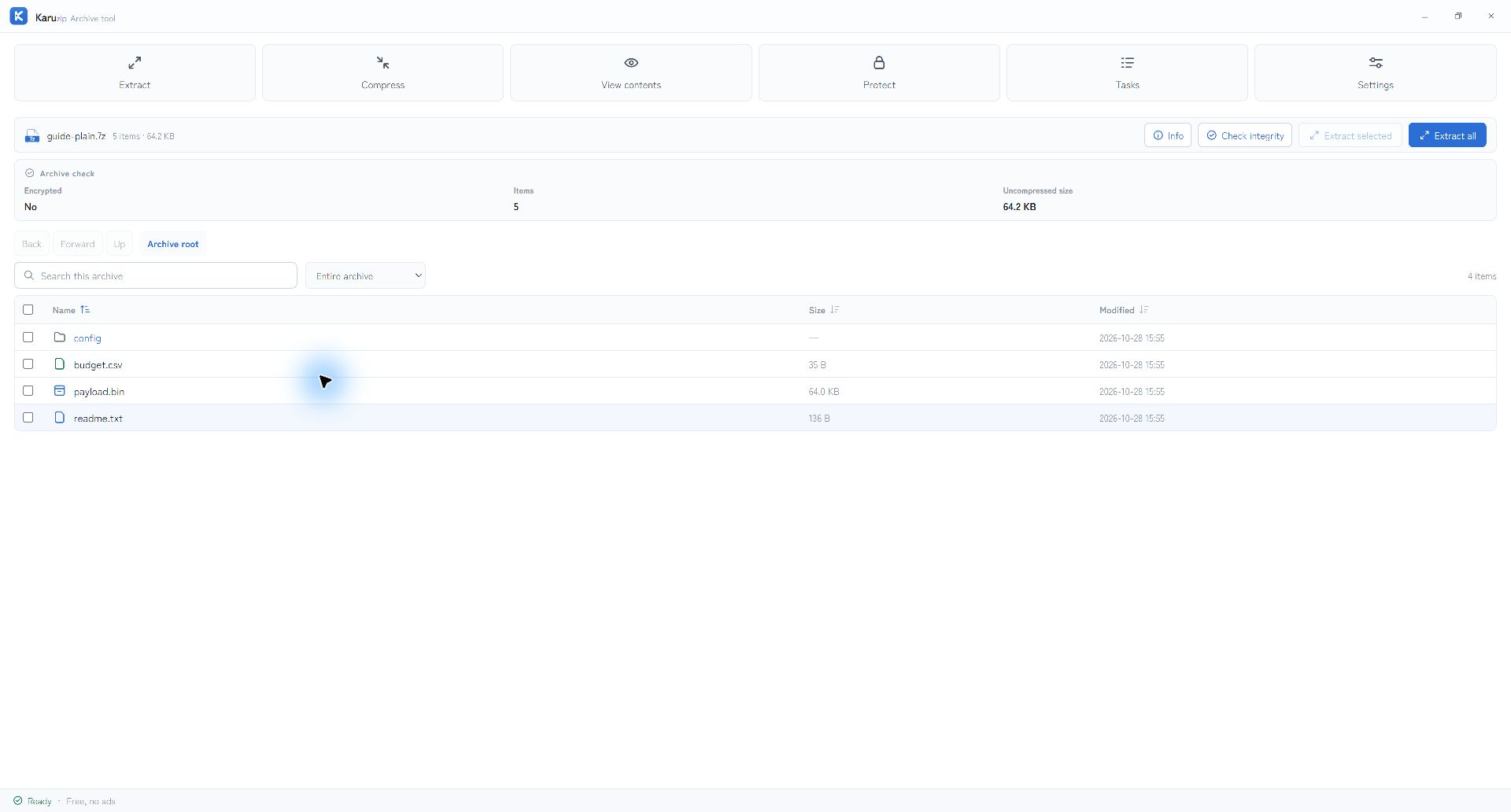
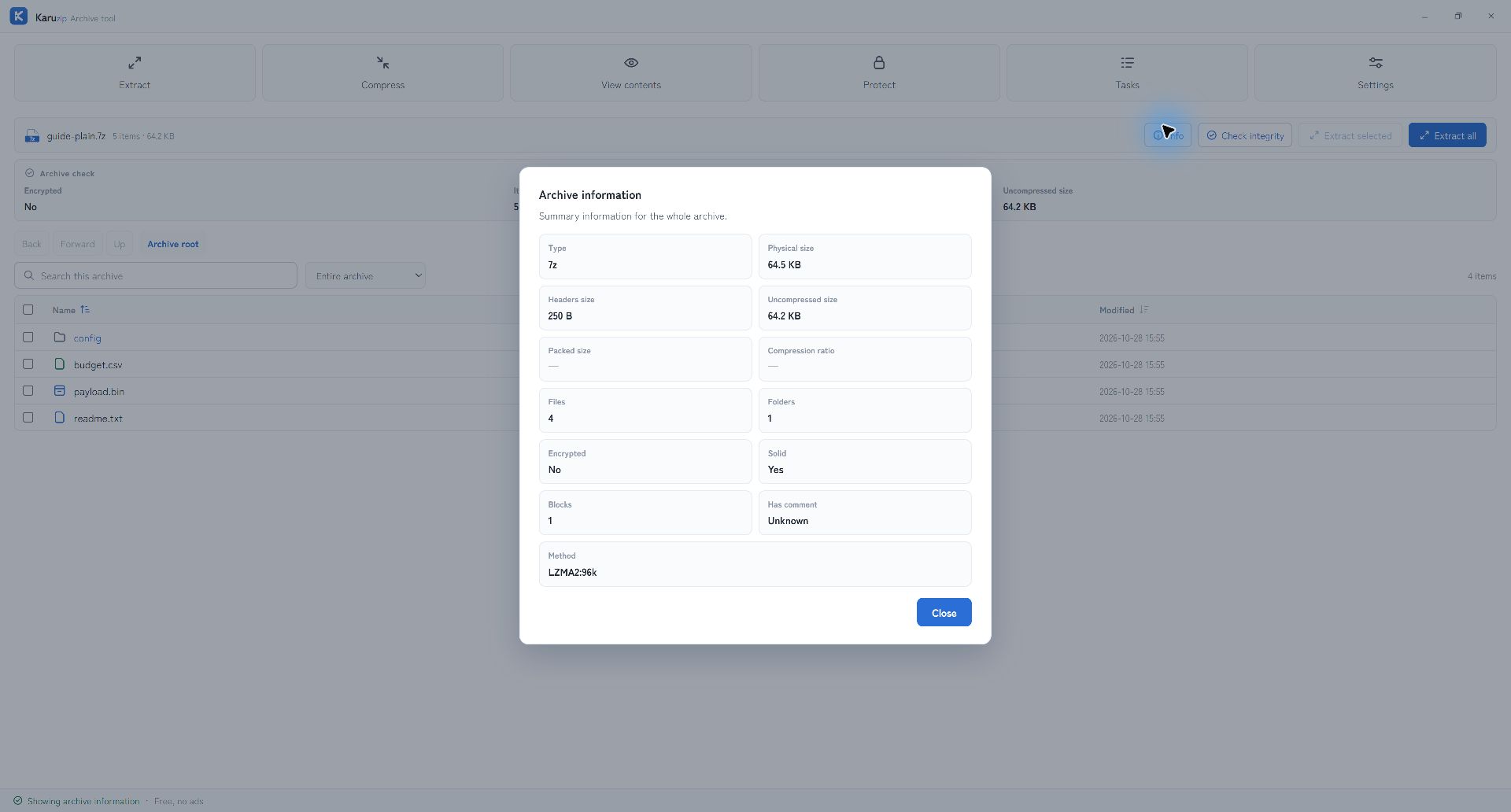
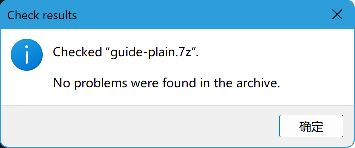
To extract only one file, use selected extraction from the archive list. The CLI test below also checked selecting readme.txt without extracting the other files.
Open a password-protected 7z file
Use a 7z-capable app and enter the password supplied by the sender. An archive with encrypted headers needs the password before file names can be listed. If the prompt returns, check spaces, letter case and whether you have the password for this particular archive.
In the English GUI, we entered the correct password, opened the list and extracted all four files; every output hash matched. The CLI also passed with the correct password. A wrong password failed both the CLI test and extraction, with no output files created. This result concerns the controlled sample; it does not identify the cause of every encrypted-archive error.
Open split files such as .7z.001, .7z.002 and .7z.003
- Download every part completely into one folder.
- Keep the common base name and the numbered extensions unchanged.
- Open the first part, such as
sample.7z.001, and extract it with a compatible app. - Check the output before deleting any part. Do not extract each volume separately or join parts by changing their names.
Our three-volume GUI and CLI tests extracted all four files correctly. In the CLI, a copy missing the middle volume failed the test and extraction and produced no output files. Re-download or request the missing part; an extractor cannot reconstruct it. See the split-archive guide for related naming and file-sharing checks.
If the 7z file still will not open
- Check that the browser download finished. A partial download or an HTML sign-in page saved as an archive is not a usable 7z.
- For split archives, compare the part names and count with the sender’s list.
- Try a short local path and a new writable destination; confirm sufficient free space.
- If Check integrity fails on a complete download, ask the sender to test the original and provide a new copy.
- If extraction succeeds but files seem missing, check the destination and original expected contents. A valid archive can still contain fewer files than the sender intended.
For cloud-download diagnosis, see OneDrive / Box ZIP troubleshooting. For an ordinary ZIP on Windows, use the English ZIP troubleshooting guide.
What we tested, and what the results cover
On October 28, 2026, we unpacked the frozen official Karuzip 2.2.10 installer into an isolated test folder. We checked the executable version and installer SHA-256, then used its application and CLI. This was a test of the official payload, not a clean-install or Microsoft Store test.
| Sample | Verification | Result |
|---|---|---|
| Ordinary 7z, 66,001 bytes | English GUI list, Info, integrity check and full extraction; CLI list, test and extraction | GUI and CLI output: four of four file hashes matched. |
| Encrypted 7z, 66,080 bytes | English GUI password prompt, list and extraction; CLI with correct and wrong passwords | Correct: GUI and CLI each matched four of four hashes. Wrong password in CLI: test and extraction failed; no output files. |
| Split 7z, three parts | English GUI and CLI with all parts; CLI with a copy missing .002 | Complete: GUI and CLI each matched four of four hashes. Missing part in CLI: test and extraction failed; no output files. |
| Selected readme.txt | CLI selected extraction from the ordinary 7z | Only the selected file was written; its hash matched. |
The source set contains four files (65,744 bytes in total) and one directory. These small synthetic samples check behavior and output consistency. They do not establish malware safety, speed rankings, large-archive reliability, or results for every compression method. The password and split negative cases in the table are CLI checks; the GUI checks are identified separately.
Frequently asked questions
Q. Can Windows 11 open 7z files without another app?
A. Windows 11 24H2 supports unencrypted 7z extraction in File Explorer. Right-click the file and choose Extract All. Microsoft says encrypted archive operations are not supported, so password-protected 7z files need a compatible archive app.
Q. How do I open a 7z file on Windows 10?
A. Use a compatible archive app such as Karuzip or 7-Zip. Open the 7z, inspect its contents, extract to a new folder, and check the output before deleting the original archive.
Q. How do I open a password-protected 7z file?
A. Open it in an app that supports encrypted 7z archives and enter the password supplied by the sender. If the archive also encrypts file names, the password is needed before the list appears. Karuzip cannot recover an unknown password.
Q. Which part of a split 7z archive should I open?
A. Put all parts, such as sample.7z.001, sample.7z.002 and sample.7z.003, in one folder and open sample.7z.001. Keep the names unchanged. A missing part prevents complete extraction.
Q. Does changing the extension convert 7z to ZIP?
A. Renaming does not convert the archive. Extract with a 7z-compatible app. To send a ZIP instead, create a new ZIP from the extracted files and check it before sharing.
Q. Does a successful integrity check mean the files are safe?
A. No. An archive test checks whether the stored contents can be read; it is not a malware scan. It also cannot tell whether every file the sender intended to include is present. Check the expected contents separately.
Official references
- Microsoft Support: Zip and unzip files — supported Windows archive types and the encrypted-archive limitation.
- 7-Zip: 7z format — compression methods, Unicode names and encryption.
- 7-Zip official site — free archive software and supported formats.
Official references checked October 28, 2026. Application measurements and screenshots are by the Karuzip development team.

Inspect and extract your 7z file.
Karuzip opens 7z archives on Windows 10 and 11, including password-protected files when you have the password. No ads or app telemetry.
- Updates itself automatically
- No ads or bundled software
- App sends no usage data
Karuzip runs on Windows 10 / 11. Open this page on a Windows PC to download it.