Can't extract a ZIP file in Windows 11?
Keep the original ZIP. Move a copy to a short local path, check Properties for Unblock, identify encryption, and extract into a new empty folder. If it still fails, run Check integrity or obtain a fresh copy.
Updated September 27, 2026 (published August 12, 2026) · Authored by the Karuzip team · Verification environment: File Explorer on Windows 11 25H2 build 26200.9168 (September 14, 2026); Karuzip 2.2.1 app screenshot on build 26200.9445 (September 15, 2026) and 2.2.1 CLI integrity check (September 12, 2026).
This page answers these follow-up questions first:
- Is the failure caused by blocking, encryption, path length, unsupported compression, or real damage?
- What is the difference between “not currently supported” and “currently unavailable”?
- When should you retry with File Explorer, and when should you switch to an archive tool?
- What can you verify locally before you ask for a fresh copy?
“Windows cannot complete the extraction” is a symptom, not a diagnosis. The same message can follow a blocked download, an encrypted ZIP, a path-length problem, an unsupported compression method, missing disk space, or damaged data. Start with reversible checks and keep the original archive unchanged.
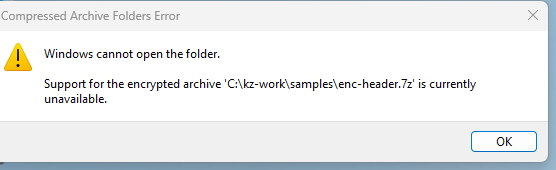
One test archive, two Windows messages. The screenshots below use the same encrypted 7z file. They show how Windows reports an unsupported archive; neither image proves that a ZIP is damaged.
“Support for the encrypted archive is currently unavailable”: what Windows means
This message can indicate unsupported encryption, rather than a damaged download. Microsoft documents that File Explorer in Windows 11 24H2 does not support operations on encrypted archives. Confirm that you expected the file, obtain the correct password from the sender, and use an app that supports that archive and encryption method.
“Extracting this archive is not currently supported”: the Extract All wizard
Running Extract All on the same archive ends in the Archive Extraction Wizard with two lines: Extracting this archive is not currently supported. and Support for encrypted archives of this type is currently unavailable. The wizard cannot be made to continue, and clicking Finish leaves the archive untouched.
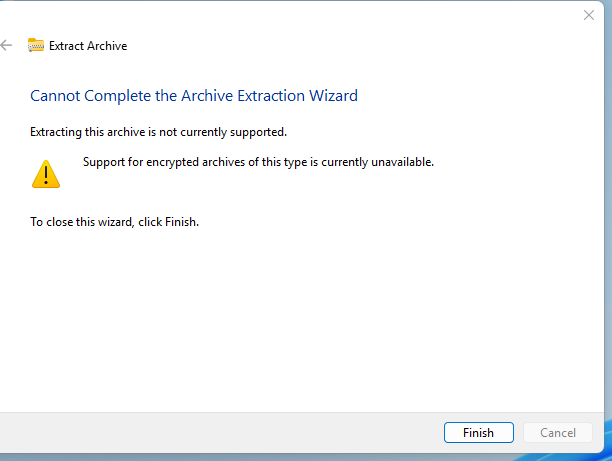
The wording is about capability, not damage. Check the actual archive format and whether all split volumes are present; changing the filename extension will not convert it. If an app that does support the format also fails, keep the original and check the password, integrity test, and a fresh copy before treating the error as corruption.
Microsoft’s archive support note was checked September 12, 2026. Our new v2.2.1 CLI check confirmed success for a harmless generated ZIP and failure for a copy with a deliberately mismatched CRC. It does not validate password recovery or malware detection. For encrypted input, see opening a password-protected ZIP.
Match the symptom before changing anything
| Symptom | What to check |
|---|---|
| Nothing happens, or the wrong app opens | Check the .zip extension, the default app, and whether Windows marked the download as blocked. |
| No password prompt, or the password fails | File Explorer does not support encrypted archive operations on Windows 11 24H2. Use a compatible tool and verify the password with the sender. |
| Extraction starts, then fails | Shorten the source and destination paths, check free space, and do not treat partial output as a complete result. |
| Files extract, but names are garbled | This is a filename-decoding problem. Follow the garbled ZIP filename guide instead of the damage steps below. |
Seven checks, in a safe order
1. Verify the source, size, and extension
Confirm that the file came from a source you trust and actually ends in .zip. If the publisher lists a file size or SHA-256 hash, compare it. A download that is much smaller than expected is usually incomplete. Renaming .rar or .7z to .zip does not convert the archive.
2. Check whether Windows blocked the download
- Right-click the ZIP and select Properties.
Stay on the General tab and look near the bottom of the dialog. - Look for Unblock.
If the checkbox is absent, continue to the next check. Its absence is normal for many files. - Unblock only a file you trust.
Select Unblock, choose Apply, then try again. Do not bypass the warning when the source is unknown.
3. Use a short local source and destination
Create a folder such as C:\Temp\ZipTest. Copy the ZIP there, then extract into a new empty folder with a short name. This removes cloud-sync placeholders, deep folder nesting, and long destination names from the test. It also keeps partial output separate from existing files.
4. Identify an encrypted ZIP
Microsoft currently states that Windows 11 version 24H2 does not support operations on encrypted archive files in File Explorer. If the ZIP needs a password, use an archive tool that supports its encryption method. Karuzip supports password-protected ZIP and 7z archives and asks for the password when required.
If a tool reports “Support for encrypted archive is not implemented” or “Extracting this archive is not currently supported”, the file is usually not damaged. Those messages mean the current tool cannot handle the archive's format or encryption — for example, an encrypted RAR file opened in a ZIP-oriented tool. Extract the archive with a tool that supports that format instead of re-downloading the file or renaming the extension.
A tool cannot recover an unknown password. Check capitalization, keyboard layout, and copied spaces, then ask the sender to confirm the password through a separate trusted channel.
5. Check free space and write access
The extracted files can require much more space than the compressed ZIP. Choose a local destination with enough free space and a folder where your Windows account can create files. Avoid system folders and read-only removable media for the diagnostic attempt.
6. Test with an archive-aware tool
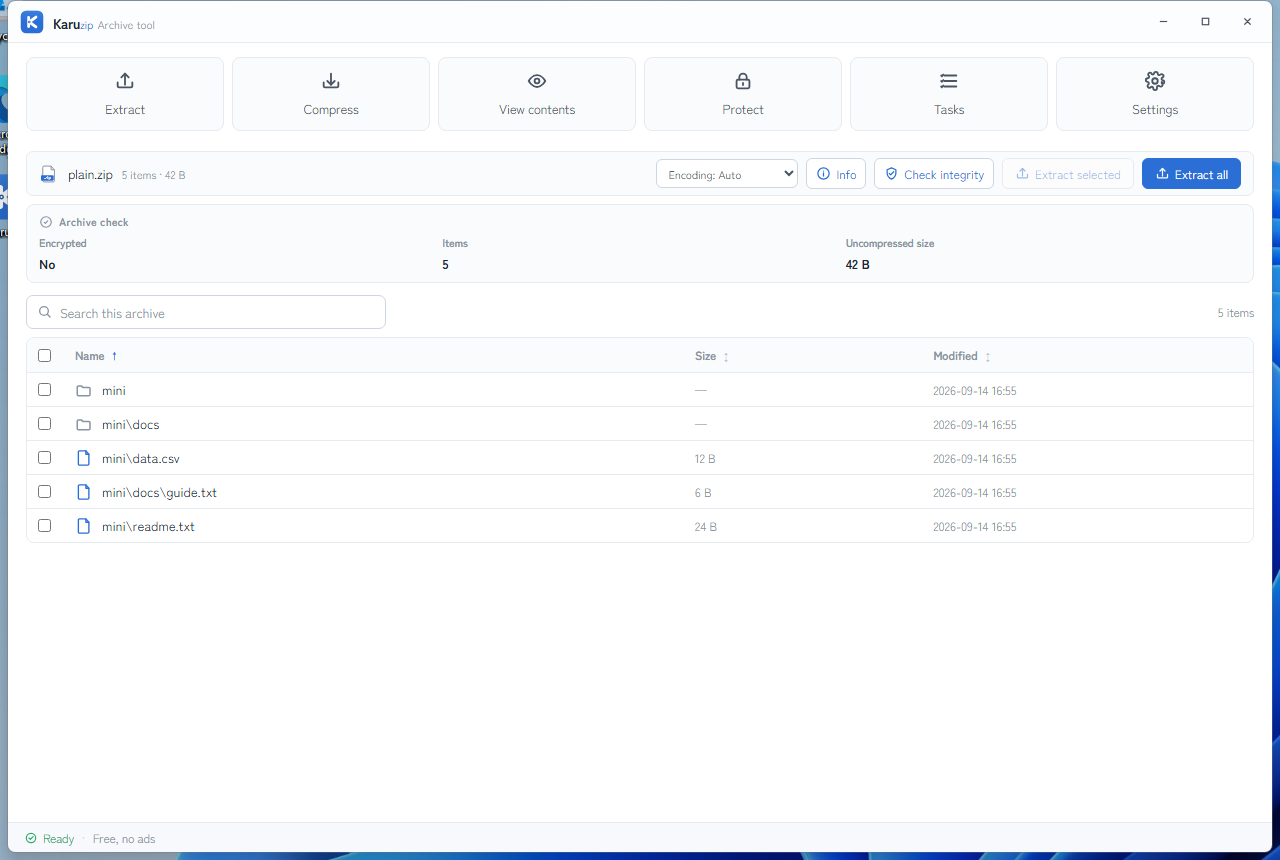
File Explorer supports common archive formats, but a ZIP can use a compression or encryption method that a particular reader does not handle. Open the archive with View contents in Karuzip. If the list appears, use Check integrity before extracting everything.
7. Download or copy the archive again
If the checks above do not resolve the problem, get a fresh copy from the original source. For email or removable-media transfers, ask the sender to upload it again or compare hashes. A new copy is safer and more reliable than trying to “repair” a file when the complete original is still available.
Use Check integrity to separate damage from compatibility
Karuzip's Check integrity operation asks the archive engine to read and verify the archive without extracting it to a destination. It is useful after the source, blocking, encryption, and path checks have been handled.
| Result | Meaning | Next |
|---|---|---|
| No problems were found | The engine could read the tested archive structure and data. | Retry in a short, empty destination. If File Explorer alone fails, use a compatible archive tool. |
| Check finished with warnings | Some content may be readable, but the result is not a clean pass. | Obtain a fresh copy when possible. If not, extract only to a separate recovery folder and verify each file. |
| Could not check integrity | The tool could not complete a reliable test. This can include encryption, unsupported input, or severe damage. | Confirm the password and format, then re-copy or re-download the archive. |
A successful extraction of one or two files is not proof that the rest are intact. Open important documents and compare expected sizes or hashes when the archive came from a critical workflow.
Do not weaken Windows security to make extraction work
Do not permanently disable Microsoft Defender, SmartScreen, or another security product to open an archive. If Windows Security quarantined an extracted file, review Protection history, verify the publisher and hash, and leave the item quarantined unless you can independently confirm it is safe.
Frequently asked questions
Q. Why can't I extract a ZIP file in Windows 11?
A. Common causes include an incomplete download, a blocked file, an encrypted archive, a path that is too long, an unsupported ZIP compression method, insufficient free space, or actual archive damage. Check those causes in order instead of assuming corruption from one error message.
Q. What does “Windows cannot complete the extraction” mean?
A. It is a general extraction failure, not a precise diagnosis. Move the ZIP to a short local path, extract into a new empty folder, check whether the download is blocked or encrypted, and then test the archive or obtain a fresh copy.
Q. How can I tell whether a ZIP file is damaged?
A. Compare its size or published hash with the source, download or copy it again, and run Check integrity in Karuzip. A failed integrity check supports a damage diagnosis, but a successful extraction of some files does not prove that every file is complete.
Q. Can Windows 11 extract an encrypted ZIP file?
A. Microsoft states that Windows 11 version 24H2 does not support operations on encrypted archive files in File Explorer. Use a tool that supports the archive's encryption method and enter the correct password.
Q. Should I disable Windows Security or antivirus to extract a ZIP?
A. No. Do not disable security protection just to open an archive. Verify the source, scan the file, and review Windows Security Protection history if an item was quarantined. Restore a file only when you can independently confirm that it is safe.
Q. What exactly does Windows 11 say about an encrypted archive?
A. Two different messages, from two different actions. Double-clicking the archive gives “Windows cannot open the folder. Support for the encrypted archive '…' is currently unavailable.” Running Extract All gives “Extracting this archive is not currently supported.” with “Support for encrypted archives of this type is currently unavailable.” Both describe a missing capability in File Explorer, not a damaged file. We reproduced both on Windows 11 25H2 build 26200.9168 on September 14, 2026.
Official references
- Microsoft Support: Zip and unzip files — Windows 11 24H2 archive support and encrypted-archive limitation (accessed August 12, 2026).
- Microsoft Support: Attachment Manager — downloaded-file blocking and the Properties Unblock control (accessed August 12, 2026).
- Microsoft Support: File path length limits — File Explorer path-length behavior (accessed August 12, 2026).
- 7-Zip FAQ — ZIP header and unsupported-method causes (accessed August 12, 2026).
Related help
- Fix garbled ZIP filenames
- Karuzip archive checks and extraction features
- How Karuzip handles files and analytics
- 日本語版:ZIP が解凍できない原因と対処

Use the CLI to separate an input problem from an interface problem
An Explorer association problem is different from an unreadable archive. The direct installer’s CLI can inspect and test the same input without relying on a context-menu entry. Keep the original archive unchanged.
If integrity checking succeeds but extraction fails, check free space, the destination, open-file locks, and conflict handling. Extraction into an existing folder also needs working space. skip preserves existing files, so it is not a request to update them with the archive’s copies.
The 2.2.3 development build improves shared-lock classification, cancellation cleanup, and reporting of delivered results or residue. Before retrying, establish whether no output was created or some output remains. A failure alone does not establish a wrong password or malware.
Command example
karuzip-cli --json archive.inspect --archive ".\sample.zip"
karuzip-cli --json archive.test --archive ".\sample.zip"
Replace the sample paths with your own test inputs. Keep global options before the action. Check the exit code and final JSON; these snippets are command examples, not proof that your archive will succeed.
Start with the CLI reference, then follow the actual local-command workflow for Codex, Claude Code, or DeepSeek Harness.
Content checked against the 2.2.3 development source on September 12, 2026. Public download: 2.2.5. Historical screenshots and measurements retain their original version. Editorial and testing policy.