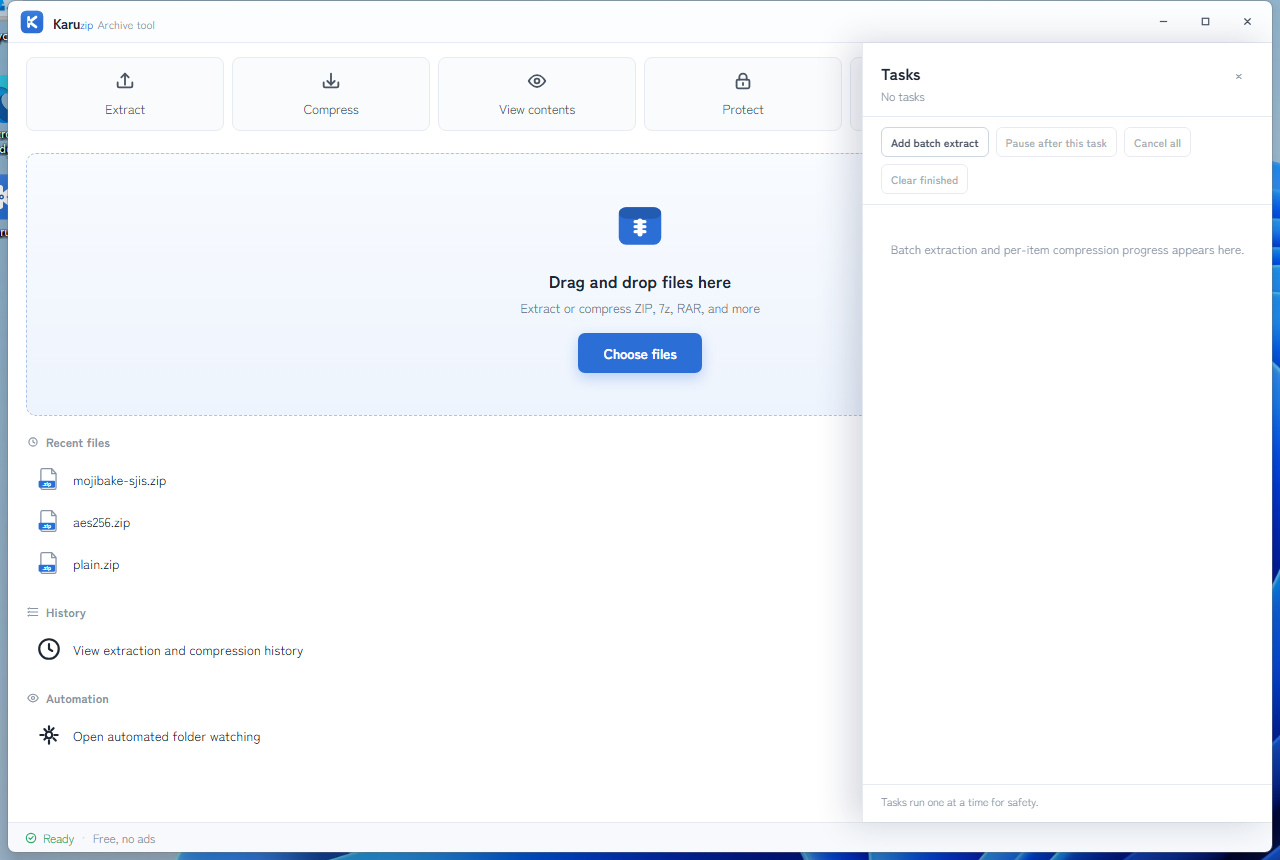
Batch extraction works best when each archive remains its own task and its own output folder. Decide the destination policy first, then queue the jobs.
This page is about queue discipline, not background automation. Karuzip can queue multiple archive tasks, but each task still needs a clear source, destination, and retry path.
Recommended batching pattern
-
1
Select only archives you actually want to process.
Karuzip's batch extraction flow is for archive inputs, not arbitrary folders mixed with unrelated files.
-
2
Set a fresh output root.
Use a new parent folder or per-archive child folders so partial failures stay visible.
-
3
Test uncertain archives first.
When the source is mixed, old, or incomplete, use a small batch or a preliminary test before you queue everything.
-
4
Let each task keep its own status.
Retry only the failed jobs instead of re-running the full queue blindly.
How to verify results
Open the task list, confirm which archive produced which folder, then compare the expected contents before you move, merge, or delete anything.
Split archives
Handle split-volume sets as complete sets. Do not batch an incomplete .zip.001, .7z.001, or split RAR job as if it were a normal single archive.
Password archives
Keep password-protected items easy to identify. A queued task can still pause on password input or fail if the password is wrong.
Fallback plan
If a subset fails, retry only that subset with a fresh destination. Do not assume a mixed output folder is safe to clean automatically.
Frequently asked questions
Can I batch extract different formats together?
Yes. Karuzip can queue different archive tasks, but keep output folders and verification rules clear so mixed formats do not create mixed results.
Should all archives be in one destination?
Not by default. Use one folder per archive when you need a clean retry or rollback view. Mixing outputs works only when you already have a clear naming policy.
Can a failed one block the rest?
No. A failed job stays isolated, so the remaining queued tasks can continue while the failed task remains easy to identify and retry.
How do I verify partial completion?
Use task status plus per-archive output folders, then inspect the expected files before any downstream move, rename, or cleanup.
Can Karuzip show tasks separately?
Yes. Each task is tracked separately, and you should treat each completed folder as one atomic output set.
Official references
- 日本語版:ZIP を Windows で解凍する方法 — current batch extraction and destination guidance for Karuzip (accessed August 13, 2026).
- 日本語版:Karuzip の使い方 — current task-queue workflow and extraction behavior (accessed August 13, 2026).
- Microsoft Support: Zip and unzip files — baseline Windows archive workflow used for comparison (accessed August 13, 2026).
Queue the jobs, but keep every output easy to inspect
Karuzip can queue archive tasks with no ads or app telemetry. The Microsoft Store version is for Windows 11. The 64-bit direct-download installer supports Windows 10 and Windows 11, but it is an unsigned beta.
 Download for Windows 10 / 11
Run a repeatable batch through the CLI
Karuzip’s CLI runs one synchronous action per process. A PowerShell script or local coding agent can call it once for each archive, keep a separate destination per input, and collect every exit code and JSON result. The CLI itself is not a persistent job daemon.
Start with a small sample. Inspect and test the archive, extract into a new folder, then verify the expected files before moving to the next input. Do not delete original archives merely because an engine has stopped. A final succeeded Receipt and the expected output are the useful checkpoints.
The GUI’s Automation area also offers a one-time batch health check. Folder watching is a different template and operates only while the app is open. The 2.2.3 development build improves result feedback and cancellation reporting; it does not make closing the app continue a batch in a Windows service.
Command example
karuzip-cli --json archive.test --archive ".\batch\first.zip"
karuzip-cli --json archive.extract --archive ".\batch\first.zip" --destination ".\batch-out\first" --conflict-policy skip
Replace the sample paths with your own test inputs. Keep global options before the action. Check the exit code and final JSON; these snippets are command examples, not proof that your archive will succeed.
Start with the CLI reference, then follow the actual local-command workflow for Codex, Claude Code, or DeepSeek Harness.
Content checked against the 2.2.3 development source on September 12, 2026. Public download: 2.2.5. Historical screenshots and measurements retain their original version. Editorial and testing policy.