Quick Answer
Do not rely on a single check when evaluating a sideloaded APK. Layer official source verification, SHA-256 checksum comparison, signing certificate verification, antivirus scanning, and Play Protect—and do not install if any check is unverified.
Windows 11 / 10 (64-bit) · Free · Zero ads
Choose the right workflow first
App is available on Google Play
Install from Google Play rather than third-party APK mirrors whenever possible.
Developer distributes APK on GitHub/website
Verify the official SHA-256 hash, signing certificate fingerprint, and antivirus scan before installing.
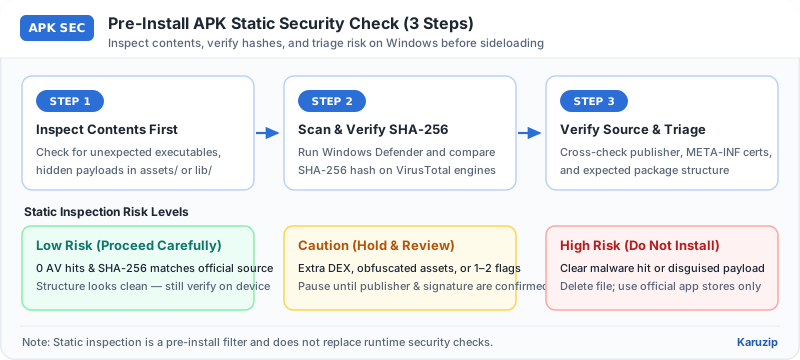
Verify an APK in 5 steps
Stop and discard the APK if any step reveals a mismatch or unknown publisher.
- Verify the download sourceOnly accept APKs from the developer's official website or verified repository, never from ad-heavy mirror sites.
- Check the official SHA-256 hashRun Get-FileHash in PowerShell on Windows and compare the SHA-256 string character-by-character against the developer's published checksum.
- Scan with Windows Security and multi-engine checksScan the APK file on Windows with Microsoft Defender before transferring it to your phone.
- Inspect package structure and signing fingerprintUse Karuzip to view bundled files if needed, and verify the APK signing certificate fingerprint (apksigner) matches previous official releases.
- Review permissions and keep Play Protect enabledOn Android, keep Google Play Protect active and decline installation if the app requests unrelated sensitive permissions.
What each APK safety layer actually verifies
| Layer | What it confirms | Blind spot |
|---|---|---|
| Karuzip Archive Test | ZIP structure is readable | Cannot detect malware or fake signatures |
| Official SHA-256 hash | File matches the developer's published build | Only trustworthy if hash comes from the real publisher |
| Signing fingerprint | Signed by the same private key as official releases | Does not prevent a compromised developer key |
| Antivirus / Play Protect | Flags known malware signatures and behaviors | May miss brand-new or obfuscated threats |
Red flags that mean do not install
If you see any of these signs, delete the APK immediately.
- Modded or 'unlocked' APKs: Unofficial modified APKs are stripped of the original developer signature and re-signed by an unknown third party—a major malware vector.
- Mismatched SHA-256 or missing checksum: If the hash does not match the official release note, treat the file as tampered or corrupted.
- Requests Accessibility or Device Admin access unexpectedly: A simple utility or game should never ask for Accessibility Service or SMS permissions.
Pre-install APK safety checklist
Frequently asked questions
Can Karuzip tell me if an APK has a virus?
- Answer
No. Karuzip can list and extract files inside an APK, but it does not scan for malware or verify cryptographic signing certificates.
If an antivirus scan says an APK is clean, is it guaranteed safe?
- Answer
No. Antivirus scans catch known malware, but new or tampered builds can slip past. Always verify the publisher, SHA-256 hash, and signing fingerprint too.
Why does the APK signing fingerprint matter?
- Answer
Android uses the signing certificate to prove an update comes from the same developer. A mismatched signature means someone else repacked and re-signed the APK.
Is it safe to install modded APKs from third-party sites?
- Answer
No. Modded APKs are altered and re-signed by unknown third parties, breaking the developer's signature chain and carrying high malware risk.
Verification & product scope
- Current release
- Karuzip v3.0.0 (14.71 MB installer, Windows 11 / 10 64-bit)
- Format coverage
- 320 extractable formats · 230 automated-verified · 12 real-machine verified
- RAR & password policy
- RAR is extract-only (no RAR creation). Karuzip never cracks, guesses, or recovers passwords.
- Checked date
- 2026-08-01
Archive integrity tests verify readability only and are not malware scans. Scan extracted executables or scripts with Windows Security before running them.
Official references

Inspect archive structures locally with Karuzip
Browse package contents offline on Windows without uploading files—ad-free and telemetry-free.
- v3.0.0 · updated 2026-11-16
- No ads or bundled software
- App sends no usage data
Karuzip runs on Windows 10 / 11. Open this page on a Windows PC to download it.